ZSA Voyager Review — 52 Keys, a Trackball, and Now a Wireless Option
I tried the wired Voyager on its own, then came back to it with ZSA’s Navigator Trackball. Here’s what I kept in my keymap, where the trackball helped, and what the new Wireless Voyager changes.
What is the ZSA Voyager?
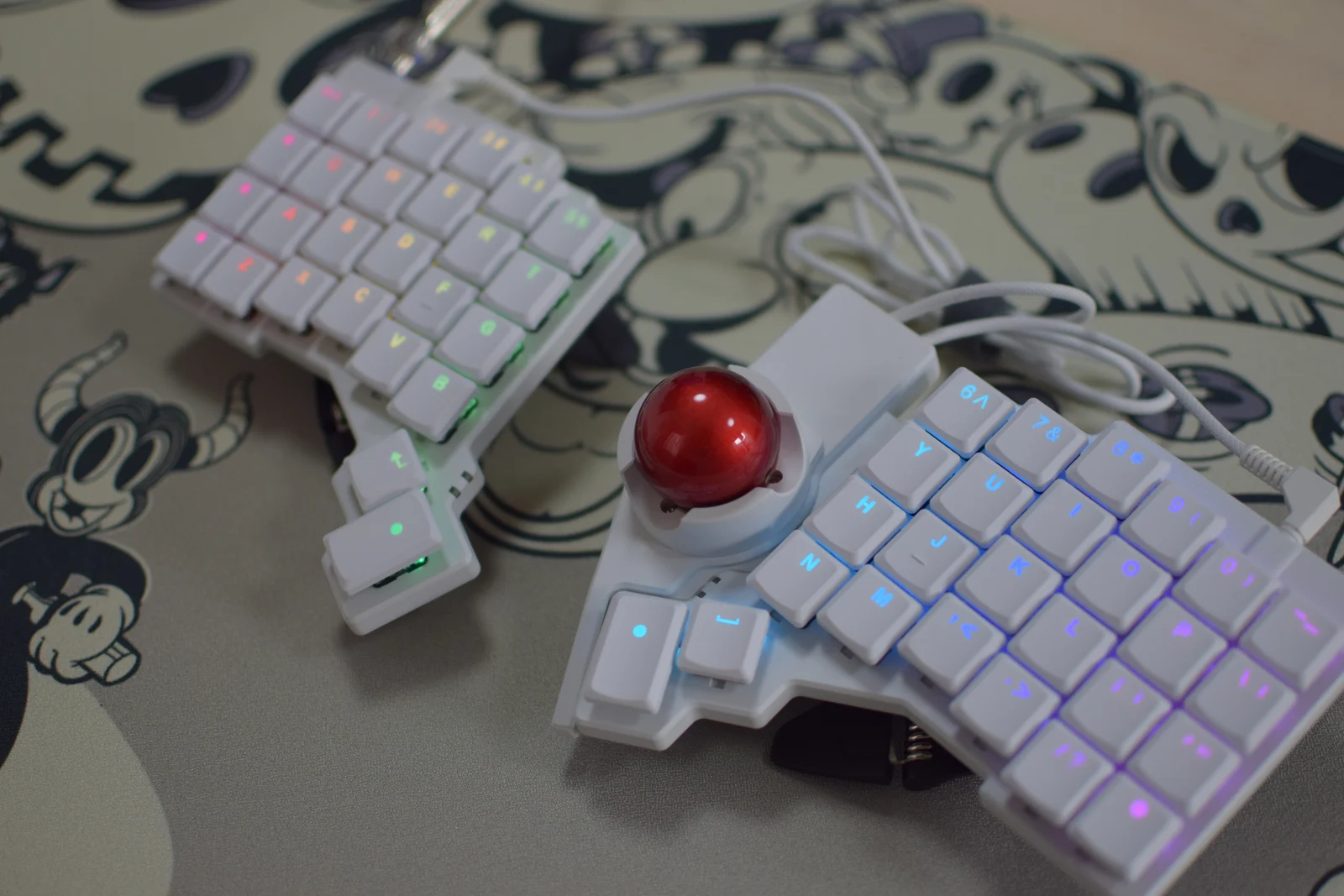
The Voyager Classic is ZSA’s 52-key, low-profile split keyboard. The two halves sit wherever you put them on the desk. A TRRS cable runs between them, and USB-C connects the keyboard to your computer. It comes assembled, with magnetic tenting feet and a carrying case.
The keys are vertically offset by finger in a column-staggered layout. The number row stays in place, but some punctuation and navigation keys move to layers. The part I took to fastest was the pair of thumb keys on each side. I used them for Space, Enter and Command. Once Enter was under my thumb, I stopped reaching for it with my right pinky.
Voyager Classic specs and portability
The keyboard itself was easy to carry. Each half is thin and light, and both fit in the included travel case. Packing the Navigator was surprisingly awkward. The shell adds bulk, and the loose ball needs to be packed securely on its own.
I also loved the per-key RGB on the white board. The colors show clearly through the legends, especially with the room lights down.
| Specification | Voyager Classic |
|---|---|
| Layout | 52 keys, column-staggered split |
| Dimensions per half (W × D × H) | 140 × 145 × 16 mm, including keycaps |
| Weight | 217 g per half, 434 g for both halves |
| Packed weight | 678 g with included cables, magnetic feet, feet holder, and carrying case |
| Connectivity | USB-C to the computer, TRRS between the halves |
| Switches | Hot-swappable Kailh Choc V1 |
| Lighting | Per-key RGB |
| Firmware | QMK, configurable in Oryx |
Specifications from ZSA. The packed weight covers the included keyboard kit.
Oryx made 52 keys enough for me
I found ZSA’s browser-based Oryx editor easier to navigate than VIA. I could put brackets on another layer, set a key to act differently when tapped or held, and assign a shortcut to two keys pressed together. Oryx also exposes double-tap and tap-then-hold actions.
Once I flashed the layout, my layers and shortcuts travelled with the board. Smart Layers is a separate Keymapp feature that can activate a layer when an application comes into focus. For example, I could have a dedicated layer come up in Photoshop.
Typing feel and sound with Choc Browns
The short keystroke felt quick and the bottom-out was firm. The sound was the weakest part of the board for me. The Choc V1 Browns in that slim plastic shell had a thin, plasticky clatter with very little depth. I still disliked the sound after adding dampeners under the keycaps.
The switches are hot-swappable, but I was disappointed by how few replacements I could choose from. Low-profile switches come in several footprints, and the Voyager’s sockets and PCB cutouts are for Kailh Choc V1. Its keycaps also use Choc V1’s two-slot mount. The Choc V1 and V2 footprint comparison shows why even another low-profile Choc switch can be a poor fit.
What the Navigator Trackball changed
The Navigator snaps onto the inner edge of the keyboard and plugs into the Classic by cable. I particularly liked where the ball sat under my index finger. My thumb tires when I use a thumb-operated trackball, so this placement made everyday pointing more comfortable for me. ZSA also offers a Navigator Trackpad if you prefer gestures, and there are shells for either side of the board.
The housing snaps firmly into place, but the ball itself simply rests in its socket. It can roll out as soon as you tilt or pick up the keyboard. I dropped mine several times. Take the ball out before moving or packing the keyboard.
Rolling the ball activated a mouse layer, so keys I could already reach became left and right click. I shortened the timeout in Oryx because I was sometimes still on the mouse layer when I went back to typing. Small targets took more care than on my Elecom Huge, so I’d keep a separate pointer handy for precision work.
The included magnetic feet tilt the halves a little. In my setup I used the optional tripod mounts to get a steeper angle and adjust each side independently.
What’s new on the Wireless Voyager?
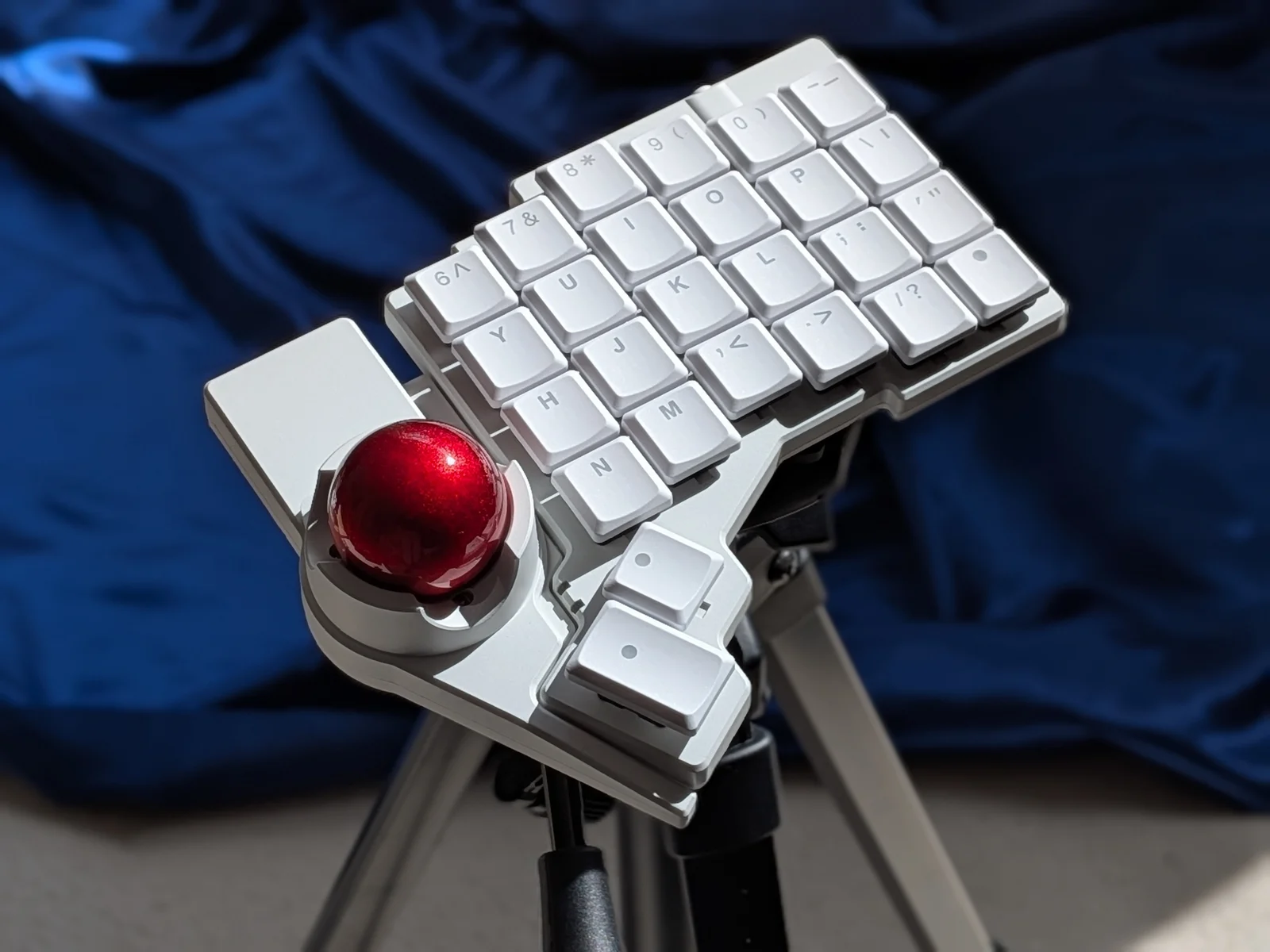
ZSA sells the Wireless Voyager as a separate keyboard and currently lists no conversion kit for the wired Classic. The new model keeps the 52-key layout, QMK firmware and Oryx. In wireless mode there’s no cable between the halves, and the keyboard can remember up to five Bluetooth devices. ZSA says you can bring over an existing Classic layout in Oryx.
Each half uses a replaceable 18650 cell. ZSA rates a full charge at 30 typical working days with the lighting off and the keyboard on its own, or seven with full RGB and two Navigators attached. You can charge both halves while typing in wired mode by plugging in USB-C on the left and linking the halves with the TRRS cable.
The matching Navigator modules connect through magnetic contacts, so the trackball or trackpad can stay attached with no external cable. You can reuse a wired Navigator on the Wireless Voyager with its cable. The Wireless Voyager lists for US$429, US$64 above the Classic, and comes with a magnetic hard case. See ZSA’s Wireless Voyager page for configurations and accessories.
Where I think the Voyager goes next
The original Voyager launched in September 2023. More than three years later, the new Wireless Voyager still uses Choc V1, with the same limited choice of compatible switches. I’m glad ZSA finally added Bluetooth, but the wait felt long to me. I’d hoped this release would give me more room to change how the board feels and sounds, too.
Keychron’s Orca echo has already gone to Kickstarter internationally. It pairs wireless connectivity with a built-in thumb trackball, and I expect it to win over some people who might otherwise have bought a Voyager and Navigator. I could see bigger brands like Epomaker entering this category, too. If more of them offer a wireless split with a trackball built in, I expect price to weigh much more heavily in the decision.
My reasons to choose ZSA today are Oryx and the Navigator. I like being able to set up layers without writing code, and I prefer pointing with my index finger. The replaceable batteries in the Wireless Voyager also matter if you plan to keep the board for years. At US$429 before adding a Navigator, though, buyers have to care about those things enough to pay the difference. I think ZSA will have a harder time winning them over unless it can make that case clearly.
Verdict
I’d buy the Classic for Oryx and the layout. It arrives ready to type on, and moving Enter and shortcuts closer to my thumbs made a bigger difference to my work than I expected. The Navigator earned its place for everyday pointing, though it adds to the price and I’d keep my dedicated trackball for detailed work.
I’d consider paying the extra US$64 for Wireless if I moved the halves around often or wanted a cleaner desk with a Navigator attached. If the keyboard stays in one spot, I’d put the money toward the pointing module or tenting hardware I’d actually use.